Importer Hub
The single front door for getting Shadowdark content into your world. Upload your official rulebook PDFs, run the one-button batch importer, and commit cleanly formatted monsters, spells, items, classes, and roll tables into managed compendium packs.
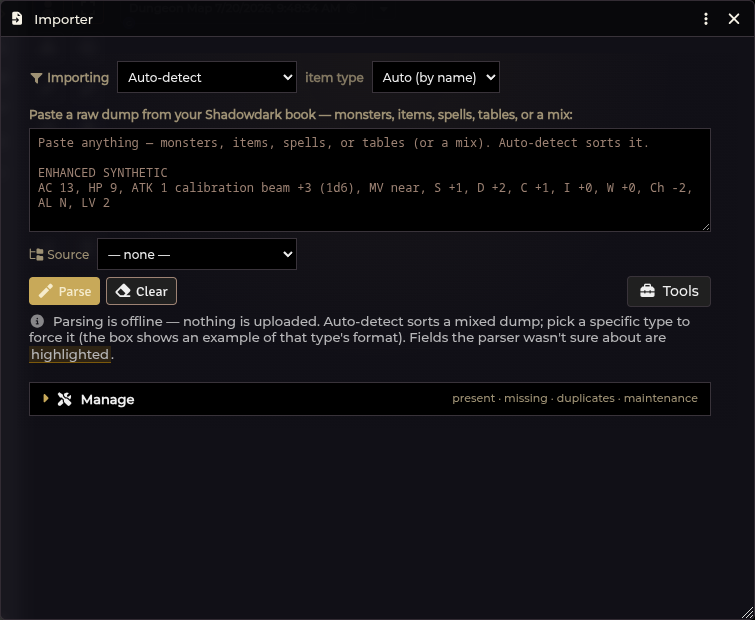
Quick start: the fast path
If you have your book PDFs ready, you do not need to paste hundreds of entries by hand.
- Upload your PDFs: Go to Tools → Source PDFs and link your PDF copies of the Core rules, Cursed Scrolls, or Western Reaches.
- Click Import everything: Expand the Manage review tree and click
Import everything (N) (or Import all N in
for a specific book). The runner grabs pages, parses entries, commits clean records, closes background workspaces when finished, and gives you a summary report. - Handle any exceptions: If a row in the report says Needs your attention or Import by hand, click its Import button to review the draft in the preview, make any adjustments, and commit it manually.
Bring your own books
The module ships no sourcebook prose. It knows the structure of the books (entry names, citations, dice formulas, and table shapes) but no rules text. Nothing is encrypted or hidden.
You supply the text from your own purchased PDFs. The module applies the
correct parsing recipe, enriches internal @UUID links, assigns curated
icons, and files documents into organized world compendiums.
- Content printed across books (such as spells reprinted in Western Reaches) can be imported from whichever PDF you own.
- Content the base Shadowdark system already ships (core spells, basic bestiary, core gear) is skipped so you never get duplicates.
Opening the Hub
| Route | How |
|---|---|
| Crawl Bar | Click the Importer button. |
| API | game.shadowdarkEnhancer.tables.openHub() |
Opening the hub is instant; scanning your world compendiums is lazy and only runs when you expand the Manage review strip.
The Batch Runner (Import Everything)
Once your source PDFs are registered, click Import everything on the Manage
tree toolbar or Import all N in
The batch runner executes the same steps you would by hand: it reads cited pages, runs the appropriate parser, validates the draft, and commits it.
Batch runner safety rules
Because nobody is supervising every single entry, the batch runner follows three strict rules:
- It never overwrites and never deletes. Every name collision defaults to "keep existing", so running a batch over an already-imported library is safe and produces zero duplicates.
- It never commits broken data. Any draft that fails a quality check is held in the preview or reported for manual review rather than written to your packs.
- Every entry is accounted for. Rows lacking linked PDFs, page citations, or automated routes are listed clearly in the final report.
Workspace cleanup and progress
- Automatic window management: The runner opens dedicated workspaces (Spell Importer, Class Importer, Item Builder) as needed and closes them automatically when the batch finishes, leaving only the final report.
- Progress bar: A visual indicator displays the current entry, with a Stop button that safely pauses the run after the active item.
- End-of-run report: Results are grouped into Imported, Already in your library, Needs your attention, and Import by hand.
Manual importing: the step-by-step loop
When you want to import a single item, test a homebrew statblock, or resolve a row that needs attention:
1. Choose a type (or use Auto-detect)
The type selector provides two groups:
- Universal paste & parse:
Auto-detect,Monsters,Items,Tables,Boats,Backgrounds,Talents,Ancestry,Compound generator,Cartesian table, andDowntime. - Guided workspaces:
Spells…andClasses…open dedicated Class & Spell Importers.
Auto-detect segments mixed text into typed blocks. Choose an explicit type
when pasting ambiguous text.
Downtimemust be selected explicitly. Auto-detect will not claim downtime tables; selecting Downtime unlocks outcome text into world settings for the Downtime sheet.
2. Paste or grab text
Paste text directly from your PDF reader, or use Grab text if a source PDF is registered. Any text the parser cannot match lands in a Skipped list so nothing is silently dropped.
3. Review the preview
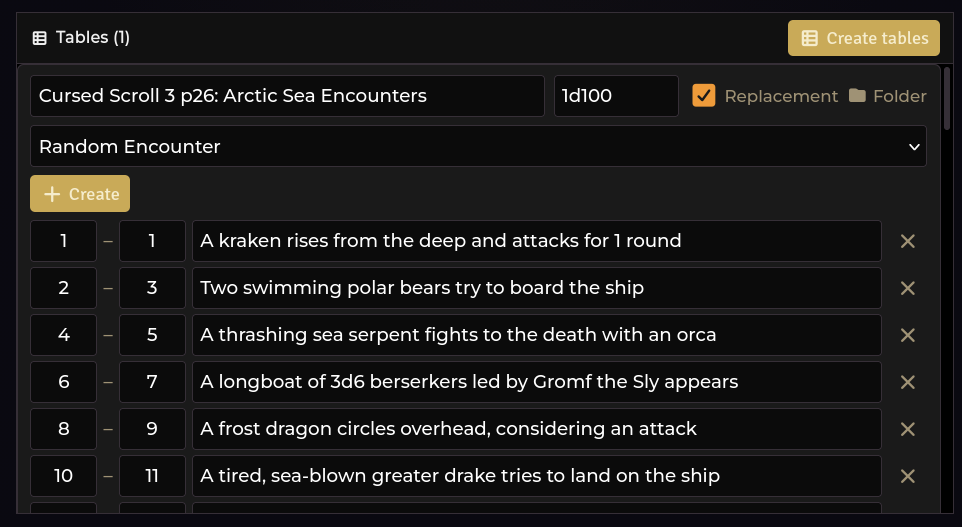
Parsed entries appear in an editable preview card.
- In-place editing: Text edits update without re-rendering, so your cursor never jumps.
- Inline review tags: Any line the parser is uncertain about is highlighted with an inline review tag; hover over it to view the explanation.
4. Commit
Click Create (or Commit All to process monsters, items, spells, and tables in sequence).
- Conflict handling: If a document with the same name already exists, you can choose to Rename newcomer, Replace existing, or Skip.
- Monster Spell protection: Generated monster spells are protected. If a standard item import shares a name with an existing generated monster spell, Replace is automatically downgraded to Keep both with an explanatory warning.
What happens after you commit
- Table link sweeps: Roll table results are automatically enriched with
@UUIDlinks to monsters and items, and dice expressions become inline rolls. - Spell ↔ class wiring: Spells link to their caster classes regardless of import order.
- Art provenance protection: Custom icons you assign are marked
customand protected against overwrites. Untouched module-curated icons upgrade automatically when new maps ship. - Curated item icons: Mapped weapons, armor, basic gear, and treasure receive reviewed Foundry-native icons.
- Mount & property folders: Mount actors are organized into a
Mountsfolder insde-actors. Canonical Western Reaches weapon properties (Blast, Exploding, and the Lance Charge/Devastating/Mounted triple) are filed inWestern Reaches / Weapon Properties.
The Manage review tree
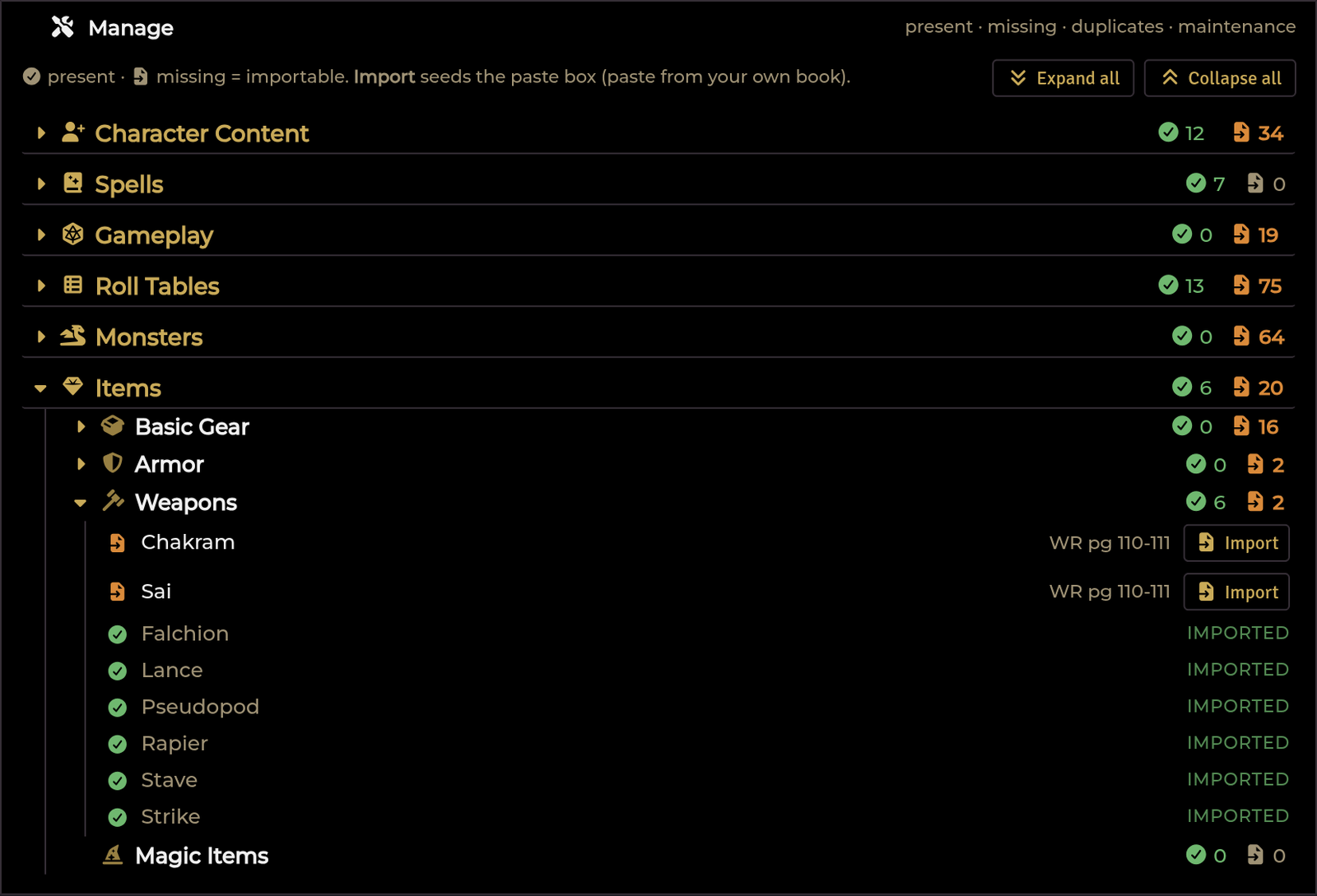
A collapsible panel comparing what each supported book contains against what is currently in your world packs.
- Filter by All, Still locked, or Imported.
- Every missing row has an Import button that pre-seeds the paste box with the correct book, type, and title.
- The Downtime node tracks unlocked book tables in world settings, displaying
Unlocked (25/25),Partial, orLocked.
Tools menu & Source PDFs
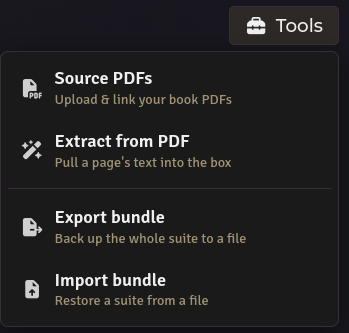
Open the Tools dropdown to manage PDFs and world backups:
Source PDFs
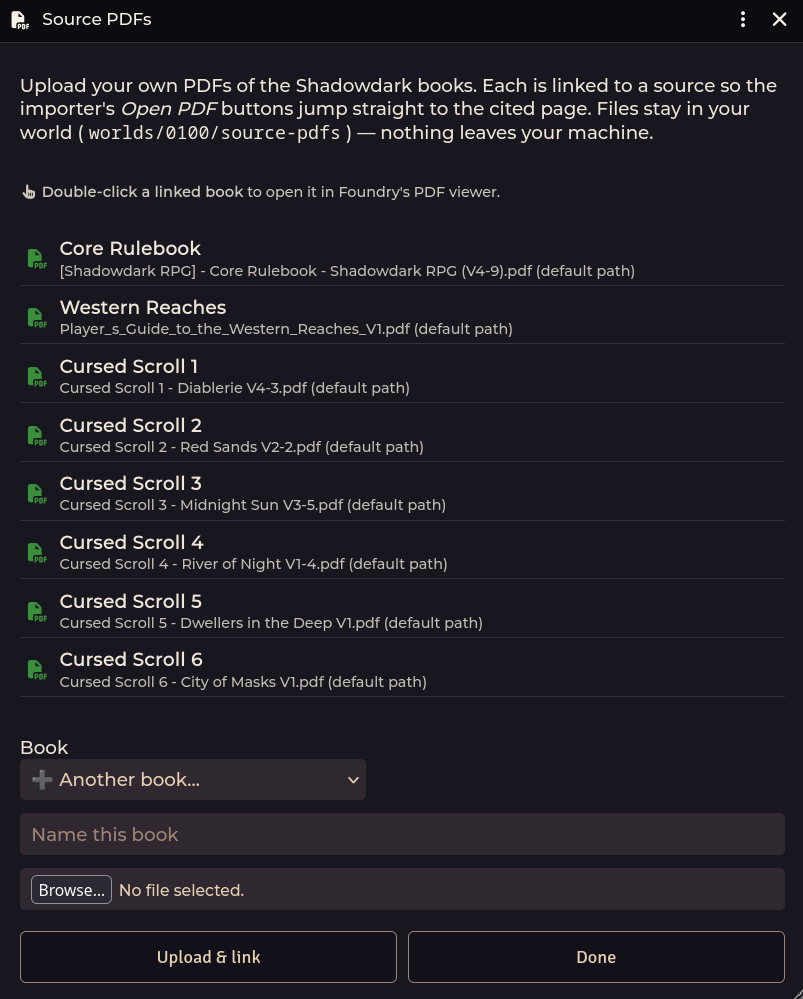
Register uploaded PDF files for Core, Western Reaches, and Cursed Scrolls 1–6.
- Deep links: Import buttons jump directly to cited book pages in Foundry's PDF viewer.
- Grab text: Extracts clean, column-aware page text directly using bundled PDF.js.
- Custom & homebrew books: Select ➕ Another book… to register third-party supplements or adventure modules.
- All PDF files remain local to your world on your server.
Bundle export / import
Export your entire managed compendium library to a single JSON file or import a
bundle into a new world. Imports validate data, preserve existing documents, and
rebuild all internal @UUID links.
Troubleshooting
Auto-detect put my text in the wrong bucket.
Select the content type explicitly from the dropdown before parsing.
Half my paste ended up in Skipped.
PDF copy-paste often introduces header and footer artifacts. If your PDF is
registered, use Grab text instead of copying manually.
I received a "Column check" warning during text extraction.
Advisory notice that a column split was close to text. Check the preview to
confirm no words crossed column boundaries before committing.
Coin and Gem didn't import with the gear table.
Intended behavior. Currency belongs in character purses or loot rather than as
inventory items, so the importer logs them as skipped.
A description has run on into the next entry.
Re-import it. Both gear and spell descriptions used to run past their own entry
— gear into the next item, and the last spell on a page into whatever followed
it, which could be several pages of tables. Both are fixed, so a fresh import
of the same pages gives you clean text.
Import everything imported nothing.
Confirm that your book PDFs are registered under Tools → Source PDFs. Check
the report's Import these by hand section for entries requiring manual pastes.
Re-importing created duplicate documents.
Check the conflict dialog selection. The default Rename newcomer creates a
second copy. Choose Skip to leave existing items untouched.
Related: Class & Spell Importers · Table Import & Shapes · Compendium Packs · Character Builder