Crawl Strip & Crawl Bar
The always-on party display pinned to the top of your canvas, and the control bar that launches the rest of the suite.
What it does
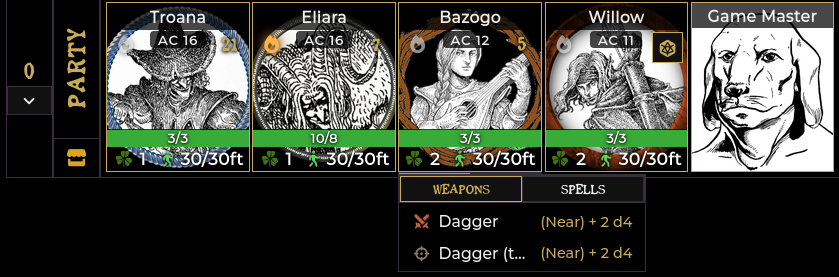
The Crawl Strip is a horizontal row of cards—one per party member—showing live HP, movement budgets, Luck tokens, AC, and active status effects without opening a character sheet.
The Crawl Bar sits directly underneath, changing controls based on whether you are exploring or in combat.
The strip switches modes automatically:
| Mode | Cards shown | Order |
|---|---|---|
| Crawl (out of combat) | Party members added to the roster | Out-of-combat initiative order |
| Combat | All active combatants | Foundry initiative tracker order |
The module honors the Shadowdark system's Clockwise Initiative setting automatically.
Opening it
You do not need to open it manually. The strip and bar install themselves when your world loads and stay pinned to the top of the canvas. The strip hides itself when there are no active members to show.
The Crawl Bar
In crawl mode

| Control | Left-click | Right-click |
|---|---|---|
| Crawl · Round # | Shows current crawl round | — |
| Next Round | Advances round and refills movement budgets | — |
| Add Tokens | Adds selected tokens to crawl roster | Reset Initiative (clears roll order) |
| Combat | Starts a combat encounter from current state | — |
| Encounter | Opens Encounter Roller | Encounter menu (check, threshold, table) |
| Forge & Loot | Opens tools menu (Forge & Loot, Shop, XP, Downtime, Renown) | Same menu |
| Importer | Opens Importer Hub | — |
| Start / End | Starts or ends the crawl session | — |
You can also drag a RollTable from the sidebar directly onto the Encounter button to set it as your active random encounter table.
Add Tokens adds only Player actors to the crawl roster. Selected NPC tokens are ignored with a notice. Membership is stored by actor ID, so characters remain on the strip when switching scenes.
In combat mode

| Control | What it does |
|---|---|
| Begin / End Encounter | Starts or ends combat round structure |
| Add Tokens | Adds selected tokens to combat tracker |
| Delete Encounter | Deletes combat encounter without running end-of-combat flow |
In combat, the strip displays one card per combatant in initiative order:
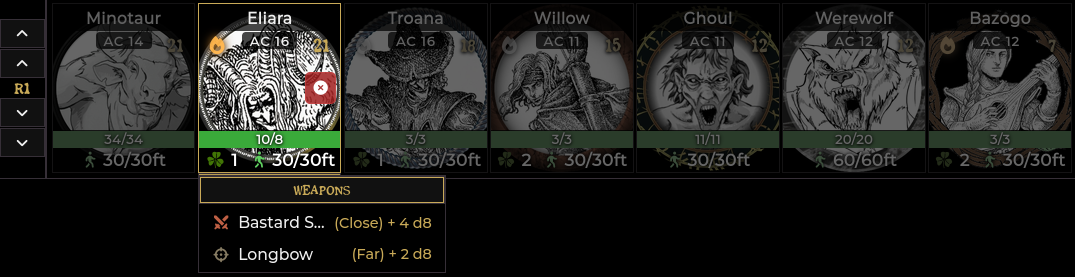
- Dead enemies leave the strip: Defeated NPCs and monsters dropped to 0 HP are removed from the strip automatically. They remain in the combat tracker so loot generators and session recaps can still count them. Healing an enemy above 0 HP returns its card.
- Downed PCs stay on the strip: Player characters at 0 HP remain visible with a skull badge.
- Dead turns are skipped automatically: When an enemy dies, the module skips their turn in the tracker automatically to keep combat moving.
Starting and ending a crawl
- Start: Begins a crawl session and starts (or resumes) a Session Recap.
- End: Ends the crawl and prompts you to save, pause, or discard the recap.
- Next Round: Advances the round counter and refills out-of-combat movement budgets. See Movement Budgets.
Rolling party initiative
Each card displays a d20 button when initiative is unrolled.
In crawl mode, GMs get a group dice button above the round number on the left of the strip. One click rolls out-of-combat initiative for all members who have not rolled yet. Characters who already rolled are skipped.
| Detail | Behavior |
|---|---|
| Visibility | GM only. Players roll using their own card's d20 button. |
| When shown | In crawl mode while at least one member still owes a roll. |
| When hidden | Hides once all roster members have rolled. |
| Resetting | Right-click Add Tokens on the bar (Reset Initiative) to clear rolls. |
The Crawl Order sidebar tab
During a crawl, a Crawl Order tab appears in Foundry's sidebar directly beneath the Combat tracker icon. It functions like an out-of-combat turn tracker:
| Section | Content |
|---|---|
| Header | Group roll button, round title, and Reset Initiative |
| Rows | Portrait, name, and initiative value or roll button |
| Footer | Turn and round controls (players see a single End Turn button) |
| Popout | Right-click sidebar icon for a floating window |
Clicking a row selects that token; players get a pan-to control on their row.
Differences from combat:
- Next round advances the crawl round, rolls wandering encounter checks, and refills movement budgets.
- Previous round adjusts the round counter back without reverting rolls.
The party cards
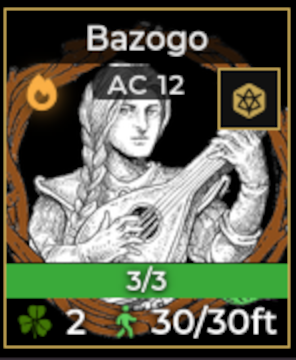
Each card displays live actor data:
| Element | Detail |
|---|---|
| Portrait & name | Drawn from the actor document |
| HP bar | Current/Max HP with color bands (Green >75%, Yellow ≤75%, Orange ≤50%, Red ≤25%, Black ≤0) |
| AC | Displayed as AC n |
| Luck pill | PCs only. Left-click to spend. Right-click (GM) to grant. Click another PC's pill to gift Luck. |
| Movement pill | remaining / budget ft. Turns red when over budget. |
| Active effects | Icons for current effects with hover tooltips for duration |
| Light source | PC cards: click to toggle character light source |
| Initiative | d20 button when unrolled; badge showing result once rolled |
| Current turn | Active combatant card is outlined in accent color; others dim |
| Skull | Marks a downed PC (0 HP) |
| Eye-slash | Marks a combatant hidden from players |
The GM card
The strip includes a Game Master card. Click its portrait to open a file picker and set your avatar, or configure it under Configure Settings → Game Master avatar.
The Merchant Shop button
In crawl mode, the PARTY plate on the left includes a shop button. Click it to open Merchant Shop. This button disappears in combat.
Activating turns (GM)
In combat, each card includes a GM-only button to activate or end that combatant's turn manually.
The action menu
Cards you own display an action tab strip underneath. Hovering a tab opens a panel organized in Shadowdark stat-block layout so players can act without opening their sheets:
| Actor type | Tabs available | Contents |
|---|---|---|
| NPC | Actions · Abilities | Attacks, special attacks, and features |
| PC | Weapons · Spells · Abilities | Equipped weapons, spells/wands/scrolls, and class abilities |
- Weapons & attacks: Shows damage inline with melee/ranged icons. Click to roll using standard system attack rolls.
- Spells: Lists memorized spells, wands, and scrolls. Wand charges and scroll consumption follow system rules.
- Hidden items: The menu automatically hides lost spells, spent wand charges, broken wands, and stashed or unidentified items.
- Abilities & features: Click to open the item sheet for full rules text.
Hidden combatants
The module automatically synchronizes token.hidden and combatant.hidden:
- Tokens hidden on the canvas produce hidden tracker combatants.
- Initiative rolls for hidden combatants are suppressed entirely from player chat, avoiding spoiler roll notifications.
Troubleshooting
The strip is empty in crawl mode.
Select your player tokens on the canvas and click Add Tokens on the crawl
bar. Only Player actors are added.
A player card disappeared after changing scenes.
Cards require an active token on the current scene to calculate movement
budgets. Place the player's token on the scene.
An enemy disappeared from the strip during combat.
Monsters and NPCs at 0 HP or marked defeated leave the strip automatically.
Healing them or clearing the defeated marker brings them back.
The combat tracker jumped past a turn automatically.
The module automatically advances past dead combatants. Use the strip's
Previous Turn button if you need to take an action on that turn.
No card is highlighted and it looks like nobody's turn.
The active turn pointer landed on a defeated combatant. On GM screens, this
advances automatically. If all enemies are dead, end the combat encounter.
Two party strips appear on screen.
Disable the legacy shadowdark-crawl-helper module in your world.
Clicking a Luck pill does nothing.
The character has 0 Luck tokens remaining, or the world is in classic mode where
Luck caps at 1.
Related: Movement Budgets · Random Encounters · Session Recap · Settings Reference